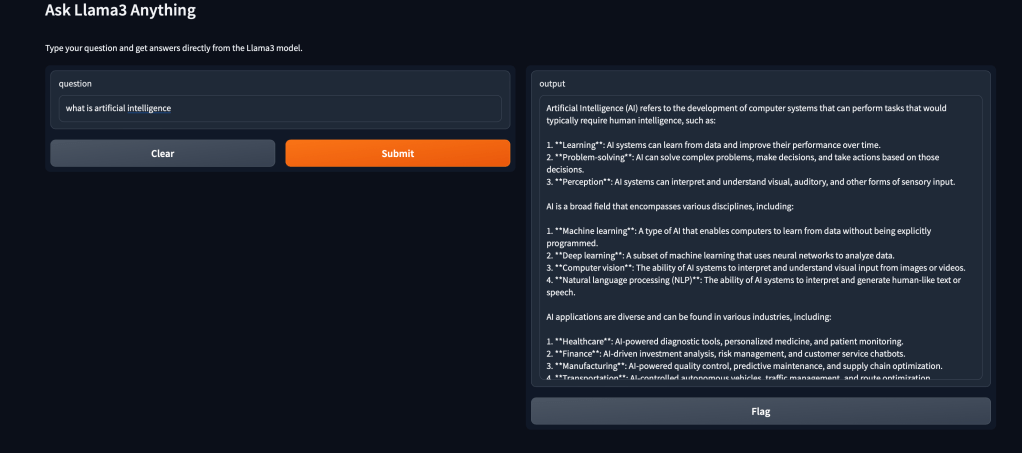

Introduction: In today’s rapidly evolving landscape of artificial intelligence (AI), accessing powerful models for natural language processing (NLP) is crucial for many applications. While cloud-based AI services offer convenience and scalability, there’s a growing interest in leveraging locally hosted models for enhanced privacy, reduced latency, and increased control over data. In this blog post, we’ll explore how to harness the power of locally hosted AI models—specifically, Deepseek-r1 and Phi4—using the Gradio interface in Python.
Step 1: Set Up a Python Virtual Environment Before installing any packages, it’s best to create a Python virtual environment. This keeps your project’s dependencies separate from your global Python installation. Here’s how to set it up:
- Install the virtual environment package if it’s not already installed:
pip install virtualenv- Create and activate the virtual environment:
- For Windows:
virtualenv env
.\env\Scripts\activate- For macOS and Linux:
virtualenv env
source env/bin/activate
Step 2: Download and Install Ollama: The first step in our journey is to obtain the Deepseek and Phi4 models from Ollama. Head over to ollama.com/download and follow the instructions to download and set up the Ollama CLI on your machine. Additionally, ensure you have the required Python packages installed by running:
pip install ollama gradioStep 2: Pull theDeepseek-r1 and Phi4 Models: Once Ollama is set up, we need to pull the Deepseek-r1 and Phi4 models locally. Open your terminal and run the following commands:
ollama pull deepseek-r1
ollama pull phi4
Step 3: Writing the Code: With the environment ready, let’s write the Python code to interact with the Deepseek-r1 model and create a user-friendly interface using Gradio. For running Phi4, just replace model='deepseek-r1' with 'phi4'. Save the following code snippet in a Python file (e.g., deepseek-r1_chat.py and phi4_chat.py)
import gradio as gr
import ollama
# Function to generate responses using the Deepseek-r1 model
def generate_response(question):
    response = ollama.chat(model='deepseek-r1', messages=[{'role': 'user', 'content': question}])
    return response['message']['content']
# Gradio interface
iface = gr.Interface(
    fn=generate_response,
    inputs="text",
    outputs="text",
    title="Ask Deepseek-r1 Anything",
    description="Type your question and get answers directly from the Deepseek-r1 model."
)
# Launch the app
iface.launch()
Here’s a brief explanation of how the script works:
- Imports: The script imports Gradio (gr) for creating the web interface and Ollama for interfacing with the Deepseek-r1 model.
- Function to Generate Responses: The
generate_responsefunction sends a user’s question to the Deepseek-r1 model using Ollama’s chat method and returns the model’s response. It expects a question as input and outputs the model’s response. - Gradio Interface Setup: The
ifaceobject defines the web interface. It usesgr.Interfaceto create a form with a text input (for user questions) and text output (for the model’s responses). The interface is titled “Ask Deepseek-r1 Anything”. - Launching the Application: The
iface.launch()command starts the web server, making the application accessible via a web browser.
This setup allows for real-time interaction with an AI model directly from a browser, making it user-friendly and accessible for various applications.
Step 4: Running the Application: Now, navigate to the directory where you saved the Python file containing the code. Open your terminal and execute the following command:
python3 deepseek-r1_chat.pyYou can access the chat interface locally at http://127.0.0.1:7860
Conclusion:
Start experimenting with locally hosted AI models today and unlock new possibilities in your AI journey!
Update: If you like this post do take a look at this article
where we walk you through the process of setting up a local environment for running Deepseek-r1 and Phi4 using Open Web UI and Ollama.
Akash Gupta
Senior VoIP Engineer and AI Enthusiast

AI and VoIP Blog
Thank you for visiting the Blog. Hit the subscribe button to receive the next post right in your inbox. If you find this article helpful don’t forget to share your feedback in the comments and hit the like button. This will helps in knowing what topics resonate with you, allowing me to create more that keeps you informed.
Thank you for reading, and stay tuned for more insights and guides!
 AI and VoIP Blog
Leave a comment